Windows Shutdown Bug Fixed! Install the Emergency Patch Now
Is your Windows 11 PC refusing to shut down after the January update? You're not alone! Microsoft has released an emergency fix. Here's how to install it and get your PC working smoothly again.
Help! My Windows 11 PC Won't Shut Down!
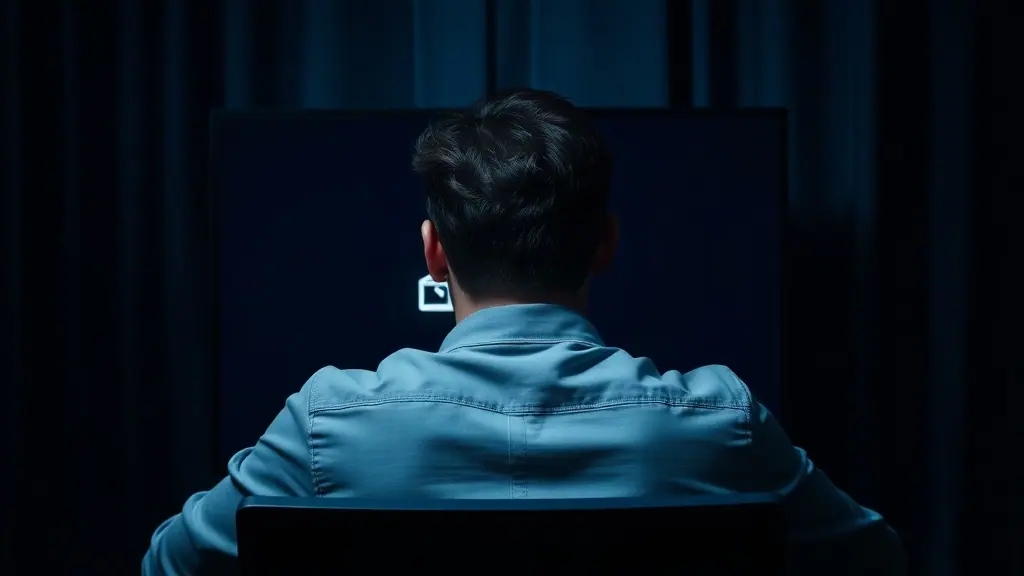
Imagine this: you're done with work, ready to relax, and you hit 'Shut Down' on your Windows 11 PC... only to find it stubbornly refusing to turn off. Frustrating, right? Well, you're not alone. A recent Windows 11 security update in January 2026 caused a widespread issue, leaving many users stuck with PCs that simply wouldn't shut down properly.
But don't panic! Microsoft has recognized the problem and released an emergency, out-of-band patch to fix this annoying bug. Here's your step-by-step guide to getting your PC back to normal.
Step-by-Step: Installing the Emergency Windows 11 Shutdown Fix
- Check for Updates: Even though this is an "out-of-band" update, start by checking for regular updates. Go to Settings > Windows Update and click "Check for Updates." Sometimes, the emergency patch will be delivered through the standard update channel.
- Download the Standalone Patch (If Needed): If the update doesn't appear through Windows Update, you may need to download the standalone patch from the Microsoft Update Catalog. Be extremely careful to download only from the official Microsoft website. Search the Microsoft Update Catalog for the specific KB number associated with the shutdown fix (Microsoft should provide this KB number in their official communication regarding the bug).
- Install the Patch: Once downloaded, run the installer. Follow the on-screen instructions. You'll likely need to restart your computer.
- Verify the Installation: After restarting, go back to Settings > Windows Update > Update History. Confirm that the emergency patch has been successfully installed.
- Test the Shutdown: Finally, the moment of truth! Try shutting down your computer. It should now power down correctly.
Why Did This Happen? Understanding the Bug
While Microsoft hasn't released a detailed technical explanation, these types of issues often arise from conflicts between the update's new code and existing system processes. Security updates, while crucial for protecting your PC, can sometimes inadvertently introduce unintended side effects. In this case, it seems the update was interfering with the shutdown process.
Common Mistakes to Avoid
- Downloading from Unofficial Sources: Only download the patch from the official Microsoft website or through Windows Update. Downloading from unofficial sources could expose your computer to malware.
- Ignoring Compatibility Warnings: Pay attention to any compatibility warnings during the installation process. If you receive a warning, research it before proceeding.
- Not Restarting After Installation: Restarting your computer is crucial for the patch to be fully applied. Don't skip this step!
What This Means For You: The Importance of Prompt Updates
This situation highlights the importance of staying on top of Windows updates, even though they can sometimes cause temporary headaches. Security updates protect your computer from vulnerabilities, and Microsoft is usually quick to address any issues that arise. By installing the emergency patch promptly, you're not only fixing the shutdown bug but also ensuring your system remains secure.
The Future of Updates: More Robust Testing
Hopefully, incidents like this will encourage Microsoft to invest even further in rigorous testing procedures before releasing updates to the general public. More thorough testing can help identify and resolve potential conflicts before they affect millions of users.
Conclusion: Shutdown Success!
The Windows 11 shutdown bug was a frustrating issue, but thankfully, Microsoft responded quickly with a fix. By following the steps outlined in this guide, you can easily install the emergency patch and get your PC shutting down smoothly once again. Remember to always download updates from official sources and stay vigilant about keeping your system secure. Now go ahead, shut down that PC and enjoy your well-deserved break!
Discussion (0)
Commenting as
No comments yet. Be the first to share your thoughts!
The discussion could not be loaded. Please refresh the page.
How-to guide expert and developer advocate