Turn Your Android Into a Desktop: How to Add a Windows Style Taskbar Today
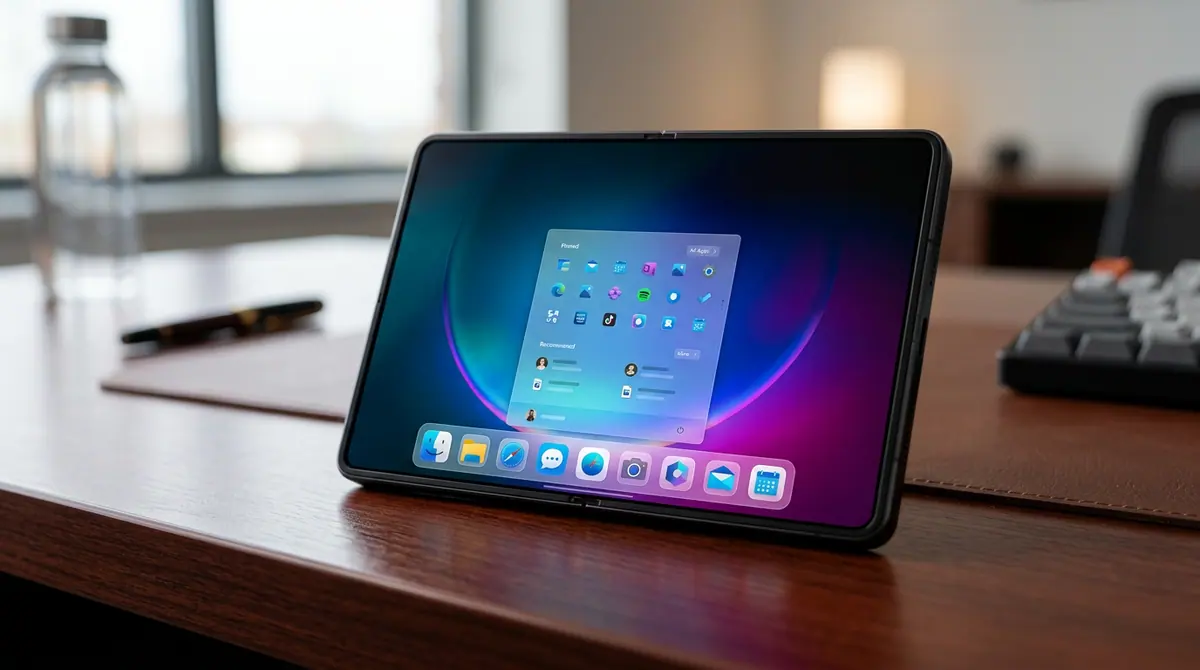
Stop treating your phone like a simple mobile device and start using it like a pocket-sized PC. Here is the step-by-step guide to adding a functional, Windows-style taskbar to your Android.
Key takeaways
- Android 16 native APIs are making desktop-style windowing and taskbars more stable than ever before.
- Using apps like Taskbar by fabsdev or Edge-to-Edge Taskbar (v2.1) allows for a Windows 11 experience without rooting your device.
- Third-party taskbars can increase battery drain by 5 to 10 percent, so monitoring power usage is essential.
- Enabling 'Force activities to be resizable' in Developer Options is the key to unlocking true PC-like freeform windows.
The Pocket PC Revolution
Stop thinking of your Android phone as just a mobile device and start treating it like the pocket-sized PC it was always meant to be. For years, the boundary between mobile and desktop operating systems has been thinning, but 2025 marked a massive shift in how we interact with our screens. With the rise of high-performance foldables and massive screen real estate, users are no longer satisfied with simple icon grids. They want real multitasking, and that starts with a persistent, Windows-style taskbar.
Context: Why the Desktop Layout is Winning
As noted in recent reports by MakeUseOf, the shift toward desktop-like productivity on Android has exploded because it simply makes sense for the way we work now. Foldable devices like the Samsung Galaxy Z Fold series have reached a point of maturity where they are being used as primary work machines, making traditional mobile navigation feel restrictive. By adding a taskbar, you gain the ability to jump between apps with a single tap, much like you would on a Windows 11 laptop.
What is New in 2026?
If you tried this a few years ago, you likely encountered buggy overlays and massive battery drain. However, a report by Android Police in April 2025 highlighted that taskbar apps have evolved significantly to work with Android 16's new desktop windowing features. These updates allow third-party apps to hook into native system APIs, providing a much smoother experience than previous versions. Furthermore, the Edge-to-Edge Taskbar app released a major v2.1 update in April 2025 that syncs dock icons to a persistent bar, supporting full multitasking previews without requiring root access.
Step-By-Step: Adding Your Windows Taskbar
Creating a desktop environment on your phone is surprisingly simple if you use the right tools. Follow these steps to transform your interface.
- Choose Your Foundation: While you can use your stock launcher, experts at XDA Developers suggest using a customizable launcher like Nova Launcher or Hyperion Launcher. These provide the flexibility needed to hide the standard dock and make room for your new taskbar.
- Install the Taskbar App: Download the Taskbar app by fabsdev from the Google Play Store. As of the March 2025 update, this app is the gold standard for creating a Start Menu-like experience. Alternatively, for a more integrated feel, use the Edge-to-Edge Taskbar app to create a persistent bottom bar that mimics the Windows 11 centered look.
- Configure Permissions: For the taskbar to appear over other apps, you must grant "Display over other apps" permissions in your Android settings. If you want the taskbar to launch apps in freeform windows (like a PC), you may need to enable "Force activities to be resizable" in your device's Developer Options.
- Customize Your Icons: Use KWGT (Kustom Widget Creator) to create custom pinned icons. According to a top post on the r/androidthemes subreddit in May 2025, many users are now opting for KDE Plasma-style variants that offer even more customization than the standard Windows look.
- Manage Your Gestures: This is a common pain point. Android Authority warned in February 2025 that taskbar overlays can sometimes conflict with system gestures, especially on devices like the Pixel 9. To avoid this, try adjusting the sensitivity of your back gesture or use the taskbar's built-in "hide on keyboard" feature.
Why It Matters
This is not just about aesthetics; it is about efficiency. In a March 15, 2025 review, MakeUseOf praised the taskbar setup for making split-screen multitasking feel intuitive for long-time Windows users. By reducing the number of swipes needed to switch apps, you can save significant time during your workday. For students and professionals, this turns a phone from a consumption device into a legitimate creation tool.
What to Watch Next
The need for third-party apps may soon decrease. During the Google I/O 2025 announcement, the company revealed native taskbar APIs for the Android 16 beta. According to documentation on developer.android.com, these native features will reduce the battery overhead currently seen in third-party apps, which Android Authority currently estimates at 5 to 10 percent. As these native features roll out globally in 2026, expect the desktop-mobile hybrid experience to become the default standard for all large-screen Android devices.
The Final Takeaway
The era of the static home screen is ending. Whether you are using a dedicated taskbar app or waiting for the full rollout of Android 16, the ability to multitask like a pro is now at your fingertips. By following this guide, you can reclaim your productivity and turn your phone into the powerful workstation it was always capable of being. Just be mindful of your battery usage and gesture settings to ensure the smoothest possible transition.
Sources (3)
Discussion (0)
Commenting as
No comments yet. Be the first to share your thoughts!
The discussion could not be loaded. Please refresh the page.
Digital transformation writer and startup advisor