
Stop the USB-C Video Nightmare: A Step-by-Step Compatibility Guide
Tired of your monitor staying black when you plug in a USB-C cable? Learn how to identify the right ports and cables to fix your connection issues forever.
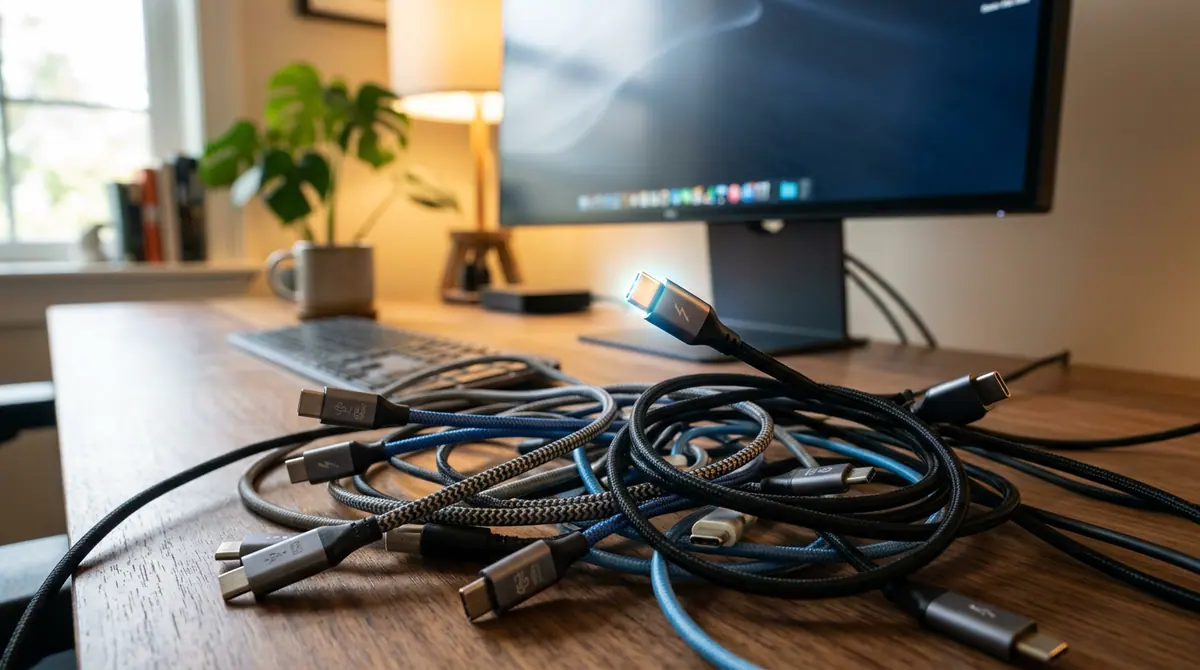
Key takeaways
- USB-C is a physical connector shape, but it does not guarantee video output unless 'DisplayPort Alt Mode' or 'Thunderbolt' is supported.
- Look for the 'D' icon (DisplayPort) or lightning bolt (Thunderbolt) next to your device ports to verify video capability.
- Standard charging cables included with phones often lack the high-speed data lanes required for video; you need a cable rated for 10Gbps or higher.
- HDMI remains a more predictable alternative for TVs and game consoles because its implementation is standardized across all devices.
The Universal Connector That Isn't Actually Universal
You finally bought that sleek new 4K monitor, plugged in the USB-C cable that came with your phone, and waited for the magic to happen. Instead, you got a black screen and a sinking feeling in your stomach. According to recent industry analysis by How-To Geek, this compatibility nightmare is one of the most common frustrations for modern tech users. The problem is a deceptive one: USB-C is a connector, not a guaranteed video standard, which means that just because a plug fits does not mean it will actually work.
For years, HDMI was the undisputed king because of its predictability. If the cable fit, the picture appeared. But as we move toward a single-cable future, the complexity of USB-C has created a landscape where consumers must become detectives to find out if their devices support video output. This guide will walk you through the steps to ensure your hardware is actually compatible before you waste another dollar on the wrong cable.
Step 1: Inspect Your Device Ports for Secret Icons
The first step in solving the mystery is looking at the port itself. Not all USB-C ports are created equal. Manufacturers often use tiny icons to indicate what a port can do, though these can be incredibly difficult to see without a flashlight. According to the USB Implementers Forum (USB-IF), the group that sets these standards, you should look for a small DisplayPort logo (a stylized 'D') next to the port. If you see this, your device supports DisplayPort Alternate Mode, which is the industry standard for sending video over a USB-C connection.
Step 2: Verify Your Cable Specifications
Perhaps the biggest trap in tech today is the charging cable. The white cable that came with your smartphone or laptop is almost certainly designed for high-speed charging and slow-speed data transfer (USB 2.0). These cables lack the internal wiring required to carry high-bandwidth video signals. To fix this, you need a cable explicitly rated for 10Gbps or higher. Reports from hardware testing sites indicate that looking for the 'SuperSpeed' logo or a cable labeled as 'Thunderbolt' or 'USB4' is the safest way to ensure video compatibility.
Step 3: Check for Thunderbolt Support
If you are using a Mac or a high-end Windows laptop, your USB-C port might actually be a Thunderbolt port. Look for a small lightning bolt icon. Thunderbolt ports are the gold standard because they are required to support video output by default. If both your laptop and your monitor have the lightning bolt, any Thunderbolt cable will work perfectly. However, if you mix a Thunderbolt laptop with a non-Thunderbolt monitor, you must ensure the cable is 'downwardly compatible' with DisplayPort standards.
Step 4: Update Your Docking Station Firmware
If you are using a docking station to connect multiple monitors and the connection is flaky, the issue might not be the hardware but the software. Manufacturers like Dell and Lenovo frequently release firmware updates specifically to address USB-C handshake issues. Checking the manufacturer support page for your specific dock model can often solve flickering or resolution problems that appear to be cable-related.
Context: Why the USB-C Mess Exists
For newcomers to this topic, it is helpful to understand that USB-C was designed to do everything: charge your laptop, transfer data, and output video. To keep costs down, manufacturers are allowed to pick and choose which features to include. A budget laptop might only include data transfer and charging on its USB-C port to save money on licensing and internal components. This 'pick and mix' approach is why two identical-looking ports can have vastly different capabilities.
Why It Matters: The Cost of Confusion
This compatibility gap is more than just an annoyance; it is a significant driver of electronic waste. Consumers often buy three or four cables before finding one that works, leading to a drawer full of useless copper. Furthermore, as the European Union and other regulators push for a common charging standard, the confusion between 'charging ports' and 'video ports' could lead to a massive wave of consumer returns for perfectly functional hardware that simply doesn't 'talk' to the user's monitor.
What to Watch Next: The Rise of USB4
The industry is moving toward a solution. The new USB4 2.0 standard aims to simplify things by mandating higher minimum data speeds and better video support across all certified devices. In the next two to three years, the 'guesswork' phase of USB-C should begin to fade as older, slower standards are phased out. Watch for the new branding labels from the USB-IF that clearly state the speed (40Gbps or 80Gbps) and power wattage directly on the cable packaging.
Common Mistakes to Avoid
- Do not assume all cables are the same: A cable that charges your laptop at 100W might not be able to display a single pixel of video.
- Avoid unbranded cheap cables: Video signals require high-quality shielding. According to user reports on tech forums, cheap cables often cause screen flickering or disconnects.
- Don't ignore the port on the monitor: Sometimes the USB-C port on a monitor is only for a built-in USB hub (for your mouse and keyboard) and does not actually accept a video signal. Check the manual for 'DP Alt Mode' support.
The Final Verdict
The dream of a single cable for everything is almost here, but we are currently in the messy middle. Until USB4 becomes the universal baseline, your best defense is to look for the DisplayPort or Thunderbolt icons and always buy cables that are rated for at least 10Gbps. If in doubt, remember that HDMI remains the most predictable connection for televisions and gaming consoles, while USB-C is best reserved for clean, single-cable laptop setups where you have verified the specs beforehand.
Sources (5)
Discussion (0)
Commenting as
No comments yet. Be the first to share your thoughts!
The discussion could not be loaded. Please refresh the page.
Mobile app developer and UX design writer