Stop the Stutter: How to Switch to MPV for Flawless 4K Video Playback
Still using VLC for high-resolution movies? You are likely missing out on smoother playback. Here is how to set up MPV, the open-source player that uses up to 90 percent less CPU power.
Key takeaways
- VLC struggles with 4K video because it relies heavily on software decoding and high CPU usage.
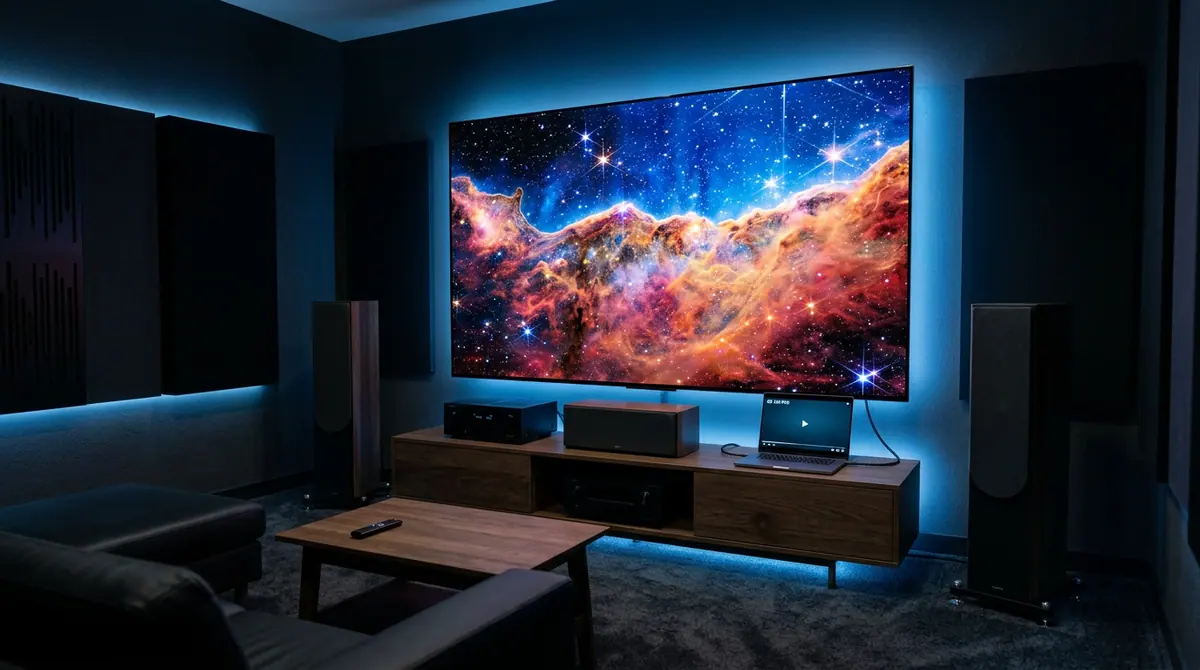
- MPV uses GPU acceleration to reduce CPU load from nearly 30% down to 3% for 4K 60fps content.
- Hardware-accelerated playback extends battery life and reduces system heat on laptops.
- Advanced users can customize MPV using Lua scripts to add functionality without adding software bloat.
The Secret to Fixing Your 4K Playback Lag
You probably have VLC media player installed on your computer right now, but it is likely the secret culprit behind why your 4K movies are stuttering like a scratched DVD. While VLC has dominated the market for years with over 3.9 billion downloads, the reality of 2026 media consumption has outpaced its traditional architecture. According to a recent report by MakeUseOf, modern high-resolution files are increasingly pushing older software to its limits, leading to dropped frames and overheating laptops.
The solution is not a more expensive graphics card; it is a shift to a leaner, meaner open-source alternative called MPV. This player has become the darling of tech enthusiasts because it prioritizes hardware-accelerated playback over flashy menus. If you want to watch 8K footage or high-bitrate 4K movies without your fan sounding like a jet engine, it is time to make the switch.
Why VLC Is Struggling with Modern Video
To understand why you need to switch, you have to understand how your computer thinks. Most older players rely on software decoding, which puts the heavy lifting on your CPU. As noted in benchmarks published by Phoronix, VLC can consume between 20 percent and 30 percent of your CPU when playing 4K H.265 content. In contrast, MPV uses GPU decoding (via technologies like NVENC or VAAPI), which drops that usage to a staggering 2 percent to 3 percent on mid-range hardware.
Step 1: Installing the Lightweight Champion
Unlike standard software, MPV does not always come with a traditional installer that includes dozens of checkbox options. For Windows users, the easiest path is to download a build from the official MPV website. If you are on a Linux distribution, many users are now turning to Celluloid, which acts as a user-friendly interface for the MPV engine. According to a 2025 analysis by Phoronix, Celluloid has become a standard inclusion in many modern Linux distros due to its stability with high-resolution codecs.
Step 2: Enabling Hardware Acceleration
The magic of MPV lies in its efficiency, but you need to ensure it is talking to your hardware correctly. While MPV attempts to use your GPU by default, you can force it to be even more aggressive. You will want to create a configuration file (typically named mpv.conf) and add the line "hwdec=auto-safe". This tells the player to use the safest hardware decoding method available on your specific chip, whether it is an Intel Arc, NVIDIA RTX, or AMD Radeon card. Researchers at Tom's Hardware found that this single line of code can virtually eliminate dropped frames on older systems.
Step 3: Customizing with Lua Scripts
One of the most powerful features of MPV is its lack of bloat. It does not include features you do not need, but it allows you to add them via scripts. Users on the r/software community on Reddit frequently share Lua scripts that add modern features like a visual progress bar, automatic subtitle downloading, or even an on-screen controller. This modular approach keeps the player fast while giving you the exact experience you want.
Context Box: What Is a Codec?
A codec is a formula used to shrink large video files so they can be stored or streamed. For years, H.264 was the standard, but 4K and 8K videos use much more complex formulas like H.265 (HEVC) or AV1. These newer codecs require significantly more processing power to "unfold" during playback. This is why a player that worked perfectly five years ago might struggle with a video file today; the math required to play the video has become exponentially more difficult for your processor to handle without specialized help from your graphics card.
What Changed: The Move to GPU Primacy
In the past, the CPU was the undisputed king of the computer. However, as video resolutions have skyrocketed, the industry has shifted toward "GPU-first" decoding. The recent update to MPV, which forked from the older MPlayer2 project, was designed specifically to bypass the CPU whenever possible. This shift is what allows a modern laptop to play a 4K 60fps movie while barely generating any heat. According to benchmarks from Phoronix, this move to GPU-centric playback is the single most important factor in extending battery life for mobile movie watchers.
Why It Matters for You
Switching to a more efficient player is about more than just avoiding a few dropped frames. It is about longevity and multitasking. By reducing your CPU load from 30 percent down to 3 percent, you are freeing up resources for other tasks and significantly reducing the wear and tear on your hardware caused by heat. For students or professionals who keep dozens of tabs open while watching video in the background, this efficiency gain is a game-changer.
What to Watch Next
Keep an eye on the development of USB4 v2 docks, which are hitting the market with 120Gbps speeds. These docks will allow for even more seamless 8K playback across multiple monitors, further moving the bottleneck from your computer's internal hardware to your external connectivity. As video quality continues to evolve, the software we use must remain as lean as possible to keep up with the data demands of the future.
Common Mistakes to Avoid
- Do not ignore the config file: While MPV works out of the box, you only get its full power by spending two minutes setting up the mpv.conf file.
- Avoid "Passive" Hubs: If you are outputting 4K video from a laptop to a monitor, a standard USB hub might throttle your bandwidth. As recommended by MakeUseOf, use a wall-powered Thunderbolt dock to ensure stable data flow.
- Update your drivers: Because MPV relies so heavily on your graphics card, having outdated NVIDIA or AMD drivers will negate its performance benefits.
Ultimately, the transition from VLC to MPV represents a broader trend in technology: moving away from Swiss Army Knife software that tries to do everything toward specialized, high-performance tools that do one thing perfectly. If you value a cinema-quality experience without the technical hiccups, your choice of player is just as important as the screen you are watching it on.
Discussion (0)
Commenting as
No comments yet. Be the first to share your thoughts!
The discussion could not be loaded. Please refresh the page.
Mobile app developer and UX design writer