Stop The Eye Strain: How To Master Your TCL NXTPAPER 14 For Maximum Productivity
Tired of digital eye fatigue? Discover how to leverage the TCL NXTPAPER 14’s paper-like display modes to create a distraction-free, eye-friendly reading and productivity powerhouse.
Key takeaways
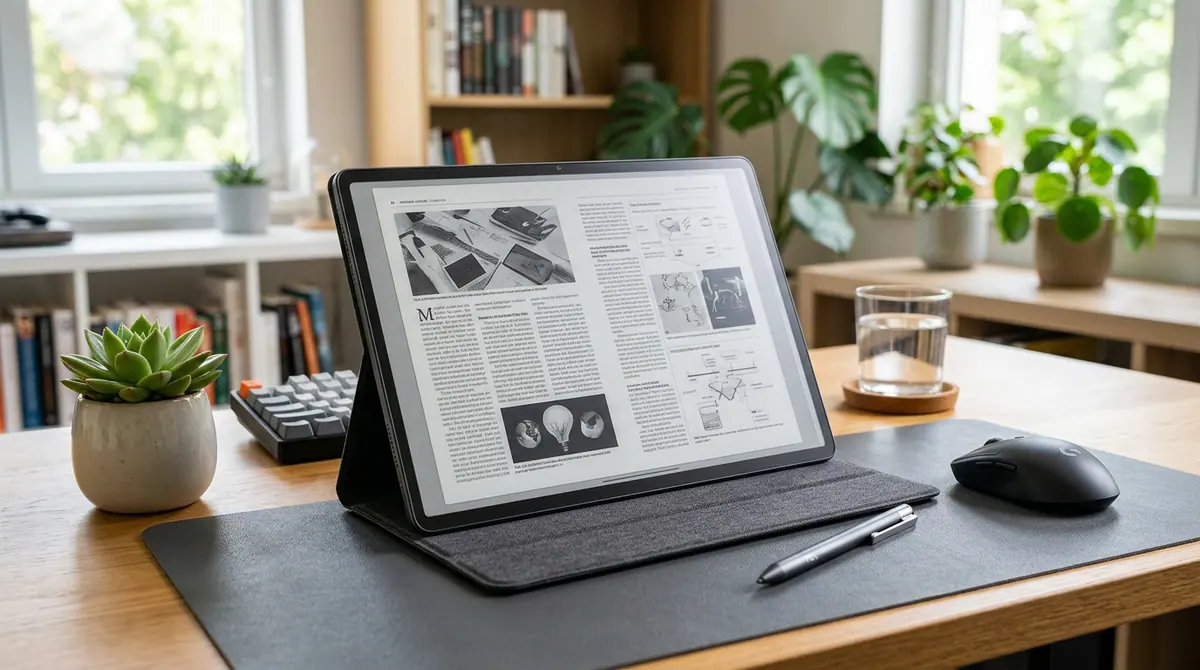
- The NXTPAPER 14 is a reading-first tablet with a specialized 14.3-inch matte display designed to mimic paper and reduce eye strain.
- Users should toggle between Regular, Color Paper, and Ink Paper modes depending on whether they are watching video, reading magazines, or studying text.
- The device is optimized for large-scale document review and note-taking rather than high-performance gaming or color-accurate creative work.
The Secret to Reading for Hours Without Eye Fatigue
Most people do not realize that staring at a standard tablet for eight hours is the visual equivalent of staring directly into a high-powered flashlight. According to a review by TechAdvisor, the new TCL NXTPAPER 14 is attempting to solve this problem by positioning itself as a reading-first, eye-comfort device rather than a direct rival to high-performance giants like the iPad or Samsung Galaxy Tab. If you have ever felt that late-night headache after scrolling through PDFs, you know the struggle. This guide will show you how to optimize this unique hardware to transform your workflow into a paper-like experience that saves your eyes and your sanity.
The Context Box: What Exactly is NXTPAPER?
Unlike standard E-ink readers like the Kindle, NXTPAPER is still a liquid crystal display (LCD) technology. However, it uses advanced optical engineering, including nano-etching and circularly polarized light, to mimic the look and feel of real paper. This allows for full-color video and fast response times while significantly reducing the harsh blue light and glare that typically cause digital eye strain. It is the middle ground between a traditional computer screen and a physical book.
What Changed: The Big Screen Evolution
The jump to the 14-inch model marks a significant shift for TCL. While previous versions were smaller, more niche devices, the TCL NXTPAPER 14 offers a 14.3-inch 2.4K panel that feels more like a clipboard than a tablet, according to findings from Tom’s Guide. You are getting 8 GB of RAM and 256 GB of storage, which is plenty for heavy document work, though the screen refresh rate remains at 60 Hz to prioritize battery life and eye comfort over high-speed gaming.
Step-by-Step Guide to Optimizing Your NXTPAPER Tablet
Step 1: Switch Between the Three Display Modes
The core of the NXTPAPER experience lies in its versatility. You should not use the same setting for checking email as you do for reading a 50-page research paper. TCL has included a dedicated hardware button to toggle between three distinct modes:
- Regular Mode: Use this for standard tablet tasks, video calls, or browsing photos where you want full color and standard brightness.
- Color Paper Mode: This is the sweet spot for magazines and comic books. It mutes the colors to look like high-quality newsprint, reducing the harshness of the backlight.
- Ink Paper Mode: Use this for deep reading. It converts the entire interface to grayscale, effectively mimicking an E-ink device, which is perfect for focused study sessions.
Step 2: Leverage the Massive 14-Inch Real Estate
Because this tablet is effectively the size of a large piece of paper, you should treat it as such. Researchers at myereader.substack.com note that the tablet is especially useful for sheet music, large-scale PDFs, and side-by-side note-taking. To make the most of this, utilize the built-in split-screen feature. Since the device comes with a stylus and a case, as noted by TechAdvisor, you can keep your reference material on the left and your handwritten notes on the right without feeling cramped.
Step 3: Managing the 10,000 mAh Battery
With a screen this large, power management is key. TCL has equipped the device with a massive 10,000 mAh battery to handle the 14.3-inch display. To maximize your time between charges, stay in Ink Paper mode when you are strictly reading text. This reduces the energy required for color processing and allows you to work through long flights or commutes without hunting for a charger.
Why This Matters for Your Daily Life
We are currently living through a digital eye-strain epidemic. By shifting your heavy reading and document-review tasks to a matte, non-glare surface, you are effectively extending your cognitive endurance. For students, researchers, and office workers, this means being able to process more information with less physical fatigue. It is not just about a pretty screen; it is about protecting your long-term vision in an increasingly screen-centric world.
Common Mistakes to Avoid
- Avoid High-End Gaming: As noted by reviewers at Tom’s Guide, this is a midrange device with a 60 Hz refresh rate. Trying to play competitive shooters will lead to disappointment; keep this for productivity and reading.
- Don't Forget the Stylus: The included stylus is essential for navigating the matte screen without leaving oils from your fingers, which can occasionally catch the light differently on etched surfaces.
- Ignoring the Price-to-Performance Ratio: Some critics argue the pricing is close to more powerful tablets. Only buy this if you specifically value the eye-comfort screen over raw processing power.
What to Watch Next
The success of the NXTPAPER 14 will likely determine if TCL continues to push into the professional 14-inch space. Keep an eye on software updates, as reviewers have identified the software ecosystem as the biggest gap between TCL and more established brands. If TCL can refine their multitasking UI to better suit the 14-inch canvas, this could become the gold standard for distraction-free professional work. For now, it remains the champion of the reading-first tablet world, offering a relief from the glare that defines our modern lives.
Discussion (0)
Commenting as
No comments yet. Be the first to share your thoughts!
The discussion could not be loaded. Please refresh the page.
EdTech specialist and former computer science educator