Stop the Drain: The Ultimate Guide to Fixing Your Pixel's Overnight Battery Loss
Is your Pixel losing 20 percent of its charge while you sleep? Learn how to master Android 16 tools and Google's latest calibration secrets to reclaim your battery life.
Key takeaways
- Overnight battery drain can be reduced by 50 percent by adjusting app standby buckets in Developer Options.
- Resetting the Adaptive Battery data via Device Health Services is a primary fix recommended by Google's latest support documentation.
- Android 16's 2026 update introduces automated Idle Optimization tools that significantly outperform older battery saving methods.
- Disabling the Ambient Display during sleep hours can save up to 1 percent of battery life every hour.
The Mystery of the Vanished Charge
Imagine waking up to find your smartphone, which was at 90 percent when you closed your eyes, is now gasping for air at 65 percent. For many owners of Google Pixel devices, this is not a nightmare; it is a daily reality. This phenomenon, known as overnight idle drain, has haunted users from the Pixel 6 series through the latest Pixel 9 models. However, new research and recent software updates have finally provided a clear path to a phone that stays charged while you rest. According to a report by MakeUseOf, practical optimization steps can reduce this idle drain by 20 to 50 percent, transforming your morning routine from a race to the charger into a productive start to the day.
Why It Matters: Your Battery’s Longevity
Persistent battery drain is more than just a morning inconvenience. Every time your phone loses significant power overnight, it forces you into more frequent charging cycles. Over a year, this unnecessary wear can significantly degrade the chemical health of your lithium-ion battery. By solving the drain problem now, you are not just saving your morning; you are extending the overall lifespan of your device by months or even years. In an era where flagship phones are designed to last half a decade, maintaining battery health is the single most important thing you can do for your wallet and the environment.
What Has Changed: The Android 16 Revolution
In the first quarter of 2026, Google rolled out Android 16, which introduced the most significant changes to power management in years. The headline feature is the Enhanced Battery Health toolset. According to reports from Android Police, these tools finally automate many of the manual tweaks that enthusiasts used to perform via hidden menus. Early user tests suggest that the new system-level optimizations can provide a 5 to 10 percent improvement in overnight retention without any user intervention. If you have not checked your update settings recently, this is the time to ensure you are running the latest firmware.
Step 1: Mastering Your App Standby Buckets
The first step to stopping the drain is managing how Android prioritizes your apps. According to technical guides from MakeUseOf, background processes often escape their intended limits. You can manually intervene by following these steps:
- Open your Settings and navigate to About Phone.
- Tap the Build Number seven times to unlock Developer Options.
- Inside Developer Options, search for Standby Apps.
- Review the list and ensure that apps you rarely use are set to Restricted or Frequent rather than Active.
This process forces the operating system to put non-essential apps into a deep sleep, preventing them from waking the processor in the middle of the night.
Step 2: The Google Support Deep Clean
In March 2025, Google updated its official support pages with a specific recommendation that many users overlooked: clearing adaptive battery learning data. Sometimes, the artificial intelligence that manages your power consumption becomes miscalibrated, actually causing the drain it is supposed to prevent. To fix this, go to Settings > Apps > See all apps > Device Health Services. Tap on Storage & cache, then Clear storage, and select Clear adaptive battery data. This reset allows the phone to relearn your habits from scratch, often resolving stubborn drain issues within 48 hours.
Step 3: Killing the Always-On Vampire
While the Pixel's Ambient Display is a beloved feature for checking the time at a glance, it is a significant contributor to idle loss. Researchers at Android Authority have found that disabling this feature can save up to 1 percent of battery life per hour. If you do not want to lose it entirely during the day, use the Bedtime Mode settings to ensure the display stays completely dark while you are asleep. This simple change, combined with turning off the Flip to Shhh vibration feature, can save nearly 10 percent of your total capacity by morning.
Step 4: Leverage the 2026 Battery Health Suite
If you are running the 2026 Android 16 update, you have access to the new Idle Optimization toggle. Found under the Battery settings, this feature uses on-device machine learning to predict your sleep patterns more accurately than ever before. Unlike previous versions of Doze mode, this new iteration can proactively shut down high-power network searches if it detects the phone is on a stable home network and has been stationary for more than 30 minutes.
Common Mistakes to Avoid
Many users try to solve battery drain by installing third-party battery saver apps. According to experts at XDA forums, these apps often do more harm than good because they must constantly run in the background to monitor other processes, creating the very drain you are trying to stop. Stick to the system-level tools provided by Google. Another mistake is leaving Bluetooth and Wi-Fi scanning enabled for location services. While helpful for navigation, they are unnecessary while you sleep and can be safely toggled off in the Location Services menu.
A Brighter (and Fully Charged) Future
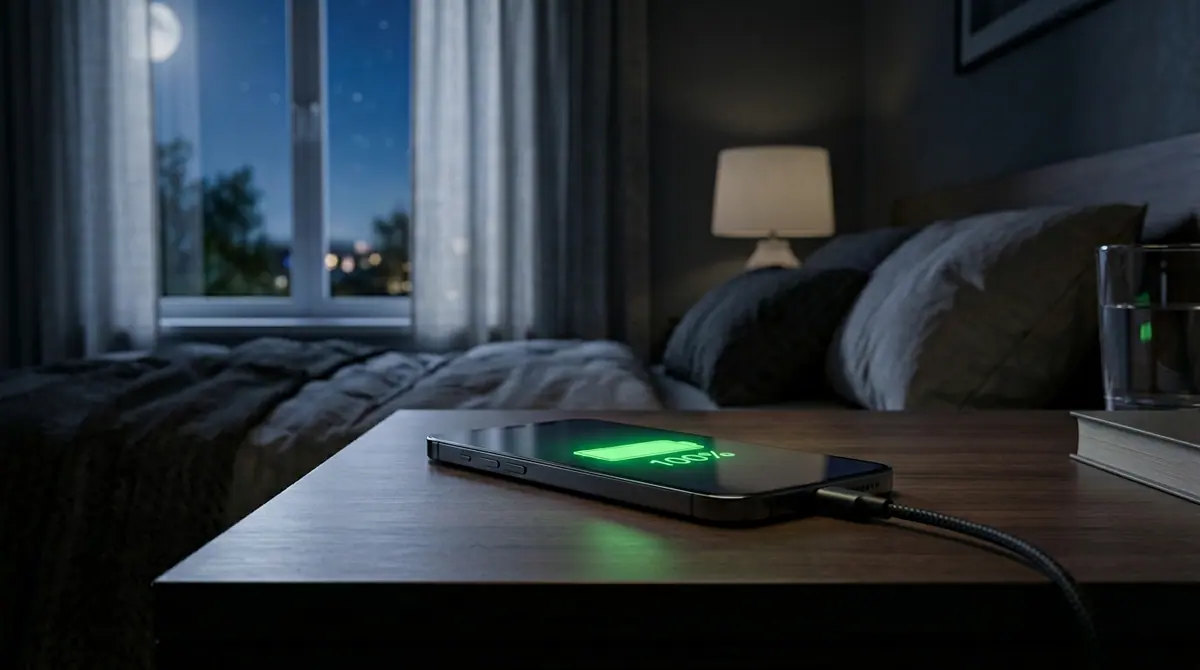
The frustration of a dying phone should not be a tax you pay for owning a high-end device. By combining the deep-level tweaks suggested by Google's March 2025 support update with the automated power of Android 16, you can finally reach the elusive goal of zero percent overnight loss. Take ten minutes tonight to audit your settings; your future self, waking up to a phone that is still at 100 percent, will thank you.
Discussion (0)
Commenting as
No comments yet. Be the first to share your thoughts!
The discussion could not be loaded. Please refresh the page.
Cybersecurity and privacy journalist